

 3D Wallpapers
 4K Wallpapers
 Video Wallpapers
 Wallpaper Images
 Slideshow Wallpapers
 Parallax Wallpapers
 Boomerang
 Colorful Wallpapers
 Blue Wallpapers
 Red Wallpapers
 Black Wallpapers
 White Wallpapers
Cartoon Live Wallpapers
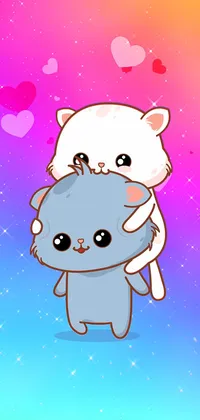
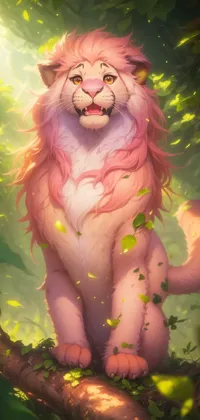
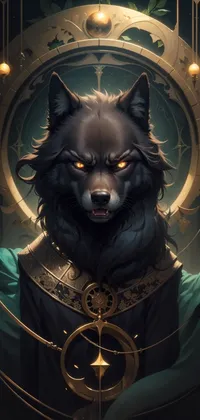
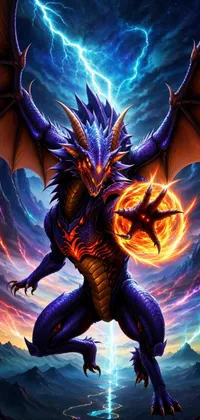
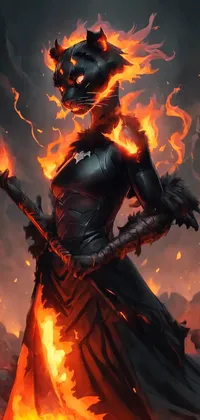
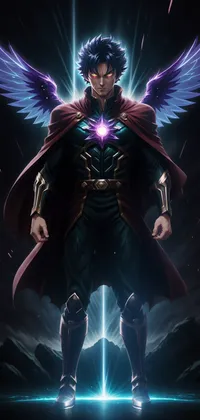
Scouting out the perfect cartoon live wallpaper for your phone? Browse our collection and see which characters are worth melting for. You can share your favorite cartoon wallpaper from the community section with your friends within the Live Wallpapers App. And you can upload your own cute cartoons and apply styling elements and special effects like 3D, parallax, and moving animations.




























Useful resources:
Related subcategories


LiveWallpapers © 2024